

Use a workspace
Develop and test SQL against a copy of your data before it becomes a transformation, from the browser, your own IDE, or a terminal.
A transformation is SQL you have finished writing. A workspace is where you write it: your own schema, holding a copy of the Storage tables you ask for, where a wrong query costs you nothing.
Where you are: you have tables in Storage and a query you are not sure about. When you finish: the same query, tested against real rows, ready to paste into a transformation.
Before you start
You need
- A Keboola project. No project yet? Get a project.
A table in Storage, such as
staffing_outlookfrom Transform data if you are following the guide.
Depending on the tab you use
- Prompt tab: Kai, the Kai Agent button in the project's top bar, on supported stacks. The first time, an organization admin switches it on; see Get started with Kai.
- UI tab: only a browser.
- CLI / API tab: kbagent, connected with an admin (master) token.
Three ways to do this, one page. They are alternatives, not steps. Prompt is what you paste into Kai; UI is the same task click by click, for when you want to see where each setting lives; CLI / API is the same task from a terminal, with the raw request beside it. Pick one tab and carry on; your choice follows you to the next page.
If a step builds something other than what this page describes, say so in the same chat; it edits what it made. Nothing here is one-way.
The Prompt tab reaches the tested query without a workspace at all, which is the honest shortest path; the other two build one. All three end with SQL you trust.
What a workspace is
Section titled “What a workspace is”A workspace is a schema of your own in the project’s backend, with the tables you choose copied into it. SQL workspaces follow the backend the project runs on, Snowflake or BigQuery; Python and R workspaces give you a notebook against the same data.
Nothing you do in one reaches Storage. The copy is taken at the moment you load it and stays as it was until you load it again, so dropping a table or rewriting a query twenty times leaves production untouched. The workspaces reference covers the rest, including the Python and R flavours.
Set it up
Section titled “Set it up”Most of the time you do not need a workspace. You want one because you want to try SQL against your data, and Kai does that without creating anything: open Kai Agent in the top bar and ask the question you would have written the query for.
Using out.c-Boolabean-staffing-outlook.staffing_outlook, which café and which day has the highestexpected_units_per_person? Show me the SQL you ran.Asking for the SQL matters. The answer is the thing you were developing, and it is what you paste into a transformation once it says what you meant.
Open a real workspace when the chat stops being the right tool:
- you are iterating for an hour rather than asking two questions;
- you want your own IDE or notebook against the data, not a chat window;
- you need Python or R libraries that a transformation does not have yet.
Creating the workspace is then the UI or CLI / API tab’s job.
Check: the answer names a café and a day, and the SQL it shows runs on its own.
-
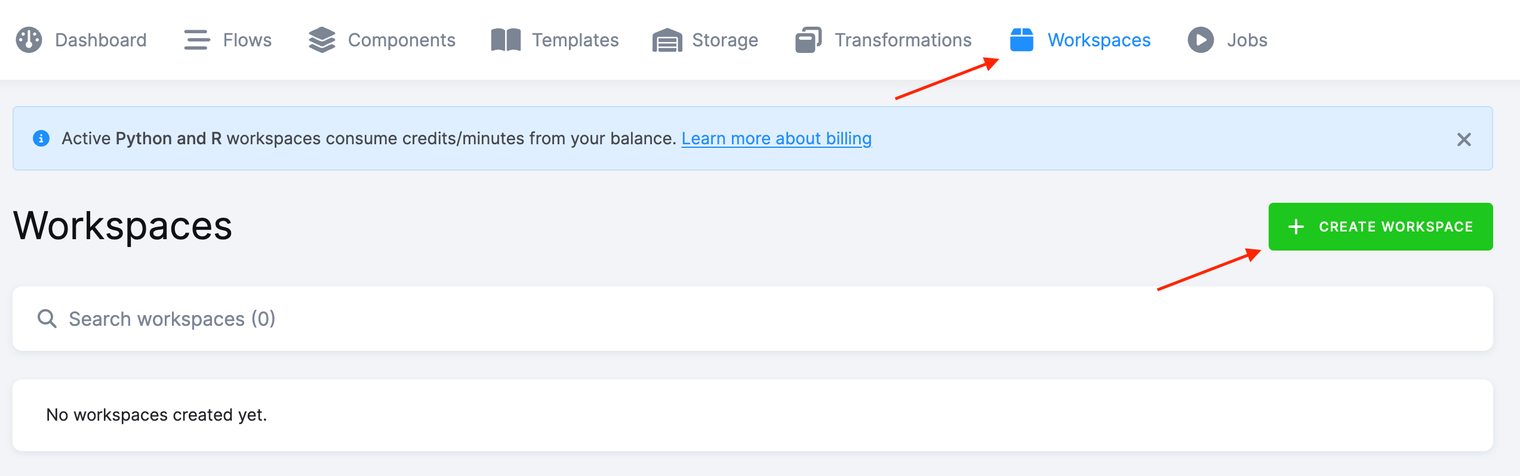
Go to Workspaces and click Create Workspace.
-
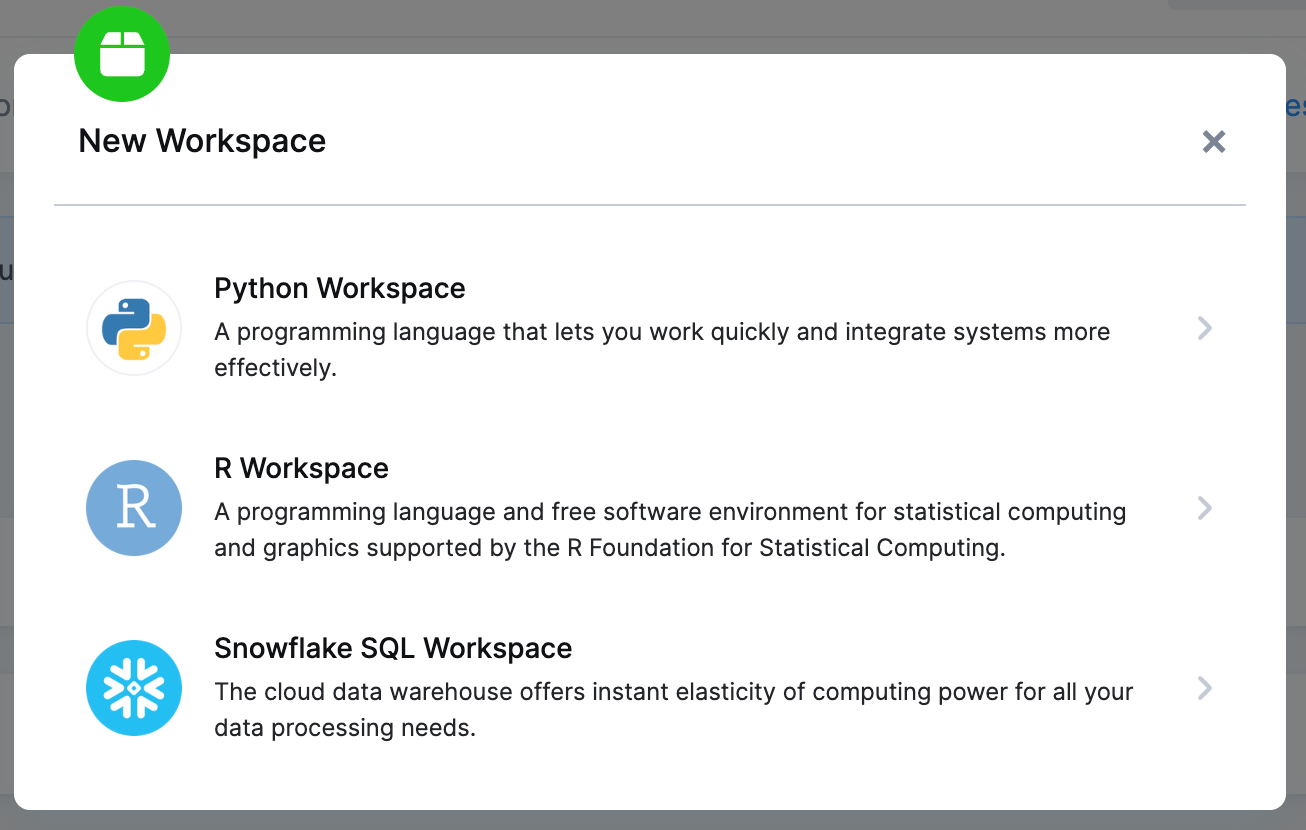
Pick the SQL workspace for your backend, Snowflake SQL Workspace or Google BigQuery Workspace. The list also offers Python and R, which give you a notebook instead of a SQL console.
-
Name it, describe it, and click Create Workspace. You can grant other project users access here, so a colleague can open the same workspace rather than build their own copy.
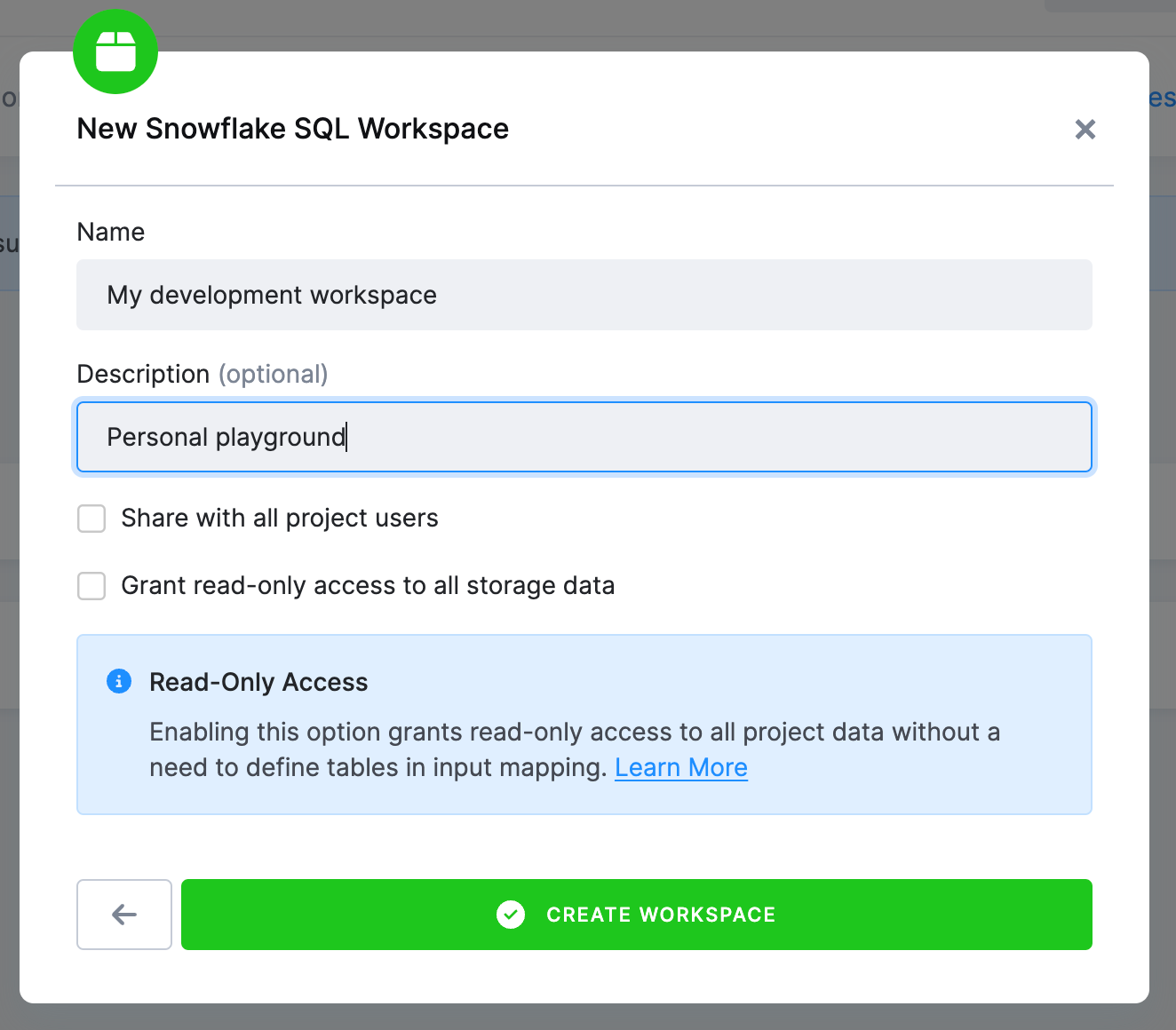
Grant read-only access to all storage data is the alternative to loading tables one by one: the workspace sees everything in Storage without copying anything. Leave it off to follow the steps below.
-
A job creates the workspace. In the Workspaces list it shows as Creating until that job finishes, then as ready.
-
Click the workspace name to open it.
-
Set the table input mapping, exactly as a transformation does, then click Load Data. The tables are copied as they are at that moment; click Load Data again to refresh them.
-
Open the Connect menu. On a Snowflake backend it holds two ways in: a Connect button that signs you in to Snowflake’s own Snowsight interface, and, beside it, the key-pair credentials for a database client of your own.
Both of those need a project with a dedicated Snowflake backend. On the shared backend that Pay As You Go and multi-tenant projects use, which includes the free project this guide starts from, there is no direct connection, and the SQL Editor is the way in: it runs the same queries against the same workspace, in the browser, on Snowflake and BigQuery alike.
Every click above is an API call underneath, and kbagent is the same calls from a
terminal. It needs to be installed and pointed at your project once with
kbagent project add, which stores the connection under an alias. The examples use docs-demo,
substitute yours. Creating a workspace needs an admin (master) token.
Create the workspace
kbagent workspace create --project docs-demo --name "Boolabean SQL"It prints the workspace ID; keep it, because every command below takes it. The backend is taken
from the project unless you pass --backend.
Read-only access to all of Storage, the checkbox in the UI tab’s step 3, is on here, the
other way round from the dialog. That is the --read-only default; --no-read-only turns it off.
It does not stop you loading tables or writing in your own schema: it decides whether the
workspace can also see the rest of Storage without copying it.
Load the tables
kbagent workspace load --project docs-demo --workspace-id <workspace-id> --tables out.c-Boolabean-staffing-outlook.staffing_outlookRepeat --tables for each one. The load clears the workspace first unless you add --preserve,
which is the difference between refreshing a copy and adding to it.
Run your SQL
kbagent workspace query --project docs-demo --workspace-id <workspace-id> --sql 'SELECT "STORE_NAME", "DATE", "EXPECTED_UNITS_PER_PERSON" FROM "staffing_outlook" ORDER BY "EXPECTED_UNITS_PER_PERSON" DESC LIMIT 5'--file takes a .sql file instead, which is the shape you want once the query is longer than a
line, and --full fetches the whole result rather than the first page.
Look at it, then throw it away
kbagent workspace detail --project docs-demo --workspace-id <workspace-id>kbagent workspace delete --project docs-demo --workspace-id <workspace-id>kbagent workspace from-transformation --project docs-demo --component-id … --config-id … is the
shortcut for the other direction: it builds a workspace loaded with exactly what a transformation reads. It needs
that configuration to have an input mapping, and one created by kbagent transformation create
does not have one yet; see Transform data.
Check it worked
Section titled “Check it worked”Coming from the Prompt tab? You have no workspace to check. Your answer arrived with the SQL that produced it, which is what the other two tabs spend a workspace getting to. You are done.
Your query returns rows, and the same query returns the same rows after a reload: the copy does
not move under you. The workspace itself shows up in Workspaces, and from a terminal in
kbagent workspace list --project docs-demo, with its ID, its backend, and whether it is
read-only.
If it goes wrong
Section titled “If it goes wrong”- A name will not resolve, but the table is loaded. Case.
Object '<NAME>' does not existmeans an unquoted name was upper-cased and the stored one is not;invalid identifier "<name>"means you quoted a name that is stored in a different case. The table above shows both. - The workspace is empty after loading. Loading again replaces what was there rather than
adding to it, in the UI’s Load Data and in
workspace loadalike. Pass--preservewhen you meant to add a table. - You cannot find the password. Workspace credentials are shown once, when they are created,
and are not readable back. Reissue them from the Connect dialog, or with
kbagent workspace password. - Old workspaces you forgot about. They are all in Workspaces; from a terminal,
kbagent workspace list --project docs-demo --orphanedfinds the ones whose configuration is already gone, andkbagent workspace gc --dry-runsays what it would clean up before it does anything.
Going further
Section titled “Going further”- Transform data is where the query you just tested belongs.
- Workspaces covers the Python and R flavours, access for other users, and read-only access to all of Storage.